For a freelancer, the best client tracker for Mac is a small CRM that connects clients, contacts, projects, invoices, and next follow-ups. Use one table for each kind of work, then build views for the records that need attention this week.
The practical next step is to copy the starter schema below: Clients, Contacts, Projects, Invoices, and Follow-ups. It keeps sales conversations, delivery, and payment reminders close enough to review without turning a solo business into a full sales department.
This article owns the freelancer client workflow. For a broader relationship database, read Personal CRM for Mac. If your starting point is a messy contact sheet, use Turn Spreadsheet Into CRM on Mac.
What a client tracker should include
A useful freelancer client tracker follows the client from first conversation to paid invoice. Start with five parts before adding dashboards or automation.
| Table | What one row means | Fields to start with |
|---|---|---|
| Clients | One company or person who buys your work | Client, status, priority, industry, notes |
| Contacts | One person at the client | Name, email, role, client, relationship owner |
| Projects | One paid or proposed engagement | Project, client, status, deadline, next handoff |
| Invoices | One invoice or payment event | Invoice, client, amount, due date, status |
| Follow-ups | One reminder or next action | Client, reason, owner, due date, outcome |
Keep the first version boring. A client tracker is useful when it answers four questions quickly: who needs attention, what work is active, which invoices need a nudge, and what happened last.
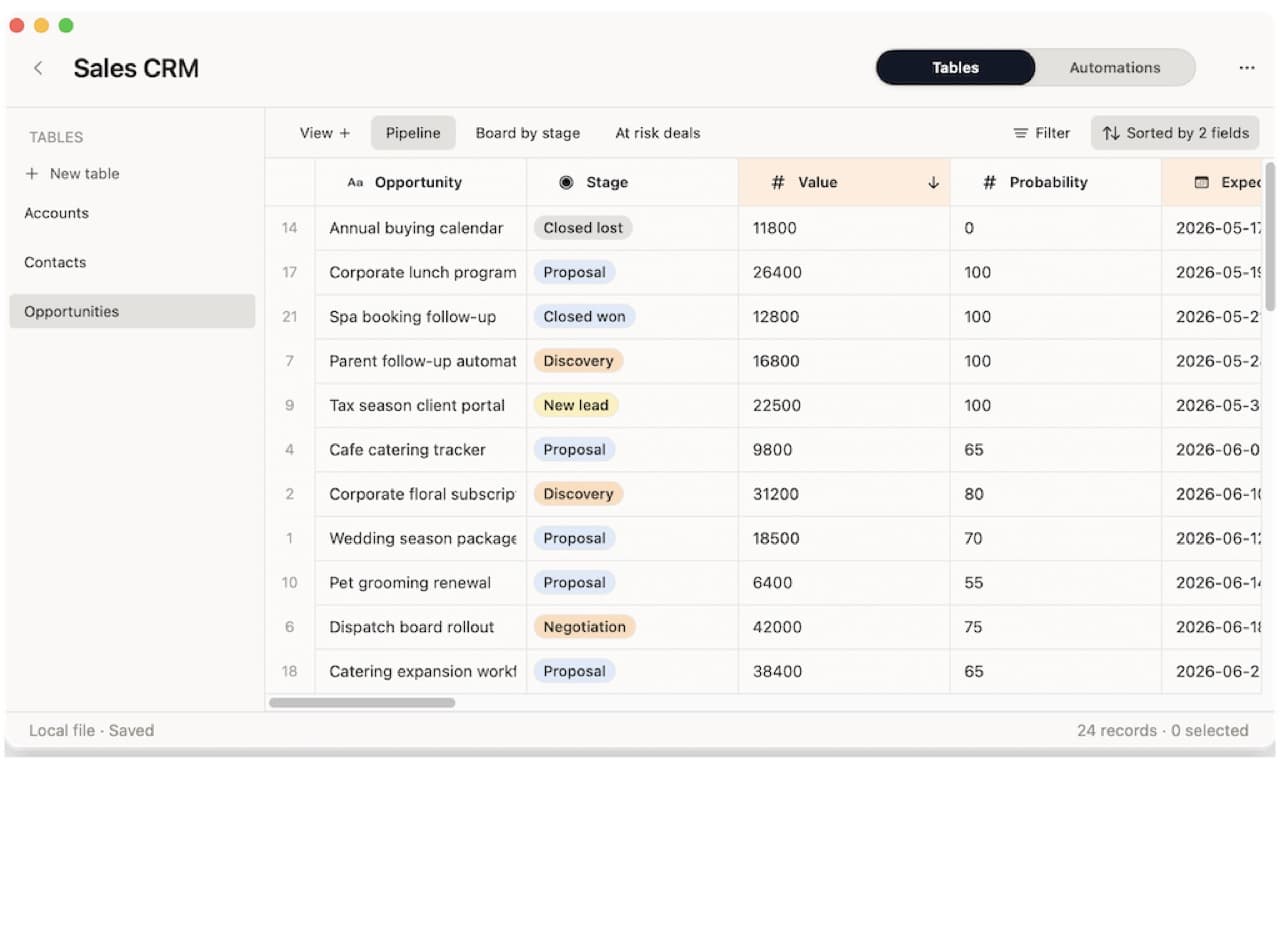
What client tracker means on a Mac
A client tracker is a lightweight CRM for the client side of freelance work. Use it when client relationships, paid work, invoices, and follow-ups need to stay in the same weekly review.
Apple Contacts is good for storing people and contact details on a Mac: Apple Contacts User Guide. A freelancer client tracker adds projects, invoices, handoffs, and next actions around the person.
Use it for:
- Leads you may turn into paid work.
- Active clients with current projects.
- Past clients who may need a check-in.
- Invoice and payment reminders.
- Handoffs, approvals, and next actions.
The tracker should stay close to your actual week. If you never open the view that says what to do next, the fields are decoration.
Why freelancer client sheets break
A freelancer client spreadsheet usually starts as one sheet with a name, email, project, rate, invoice, and notes column. It breaks when one row has to represent a client, a person, a project, and a payment reminder at the same time.
Projects and relationships get mixed
One client can have three projects. One project can have two contacts. One contact may also be the person who approves an invoice. A flat sheet forces those different jobs into the same row.
Follow-ups hide inside notes
"Ask about July work" belongs in a follow-up field with a date. If it stays inside a notes cell, it will not appear in a due-this-week view.
Invoices become awkward reminders
Freelancers often track invoice status next to project notes. That works for a tiny list, then gets risky when overdue payments, draft invoices, retainers, and project handoffs all compete for attention.
Status labels drift
"Active," "current," "working," and "in progress" may mean the same thing. Use consistent values. Google Sheets can enforce simple dropdowns with data validation, which is useful during cleanup before importing or rebuilding the tracker: Google Sheets data validation.
How to build the client tracker
Build it in passes. Do not model every edge case on day one.
Step 1: split the old sheet into client work
Take your current spreadsheet and mark each column as client, contact, project, invoice, follow-up, or discard.
Keep columns that change action. Drop columns that only felt useful when the spreadsheet was new. A field should help you filter, sort, link, calculate, or decide.
Step 2: make statuses readable
Use short labels that match how you work.
| Area | Starter statuses | Use them for |
|---|---|---|
| Client | Lead, active, past, dormant | Relationship state |
| Project | Discovery, proposal, in progress, waiting, complete | Delivery state |
| Invoice | Not invoiced, sent, overdue, paid | Payment state |
| Follow-up | Open, waiting, done, skipped | Review state |
Do not create twelve sales stages if you mostly need to remember who needs a reply. Fewer labels are easier to keep honest.
Step 3: create views that match your week
Views should turn the tracker into a work list.
| View | Filter | Use it for |
|---|---|---|
| Active clients | Client status is active | See current relationships |
| Projects waiting | Project status is waiting | Find blocked delivery work |
| Unpaid invoices | Invoice status is sent or overdue | Review payment follow-up |
| Next follow-ups | Follow-up date is today or this week | Plan outreach |
| Dormant review | Client status is dormant and priority is medium or high | Find warm restart opportunities |
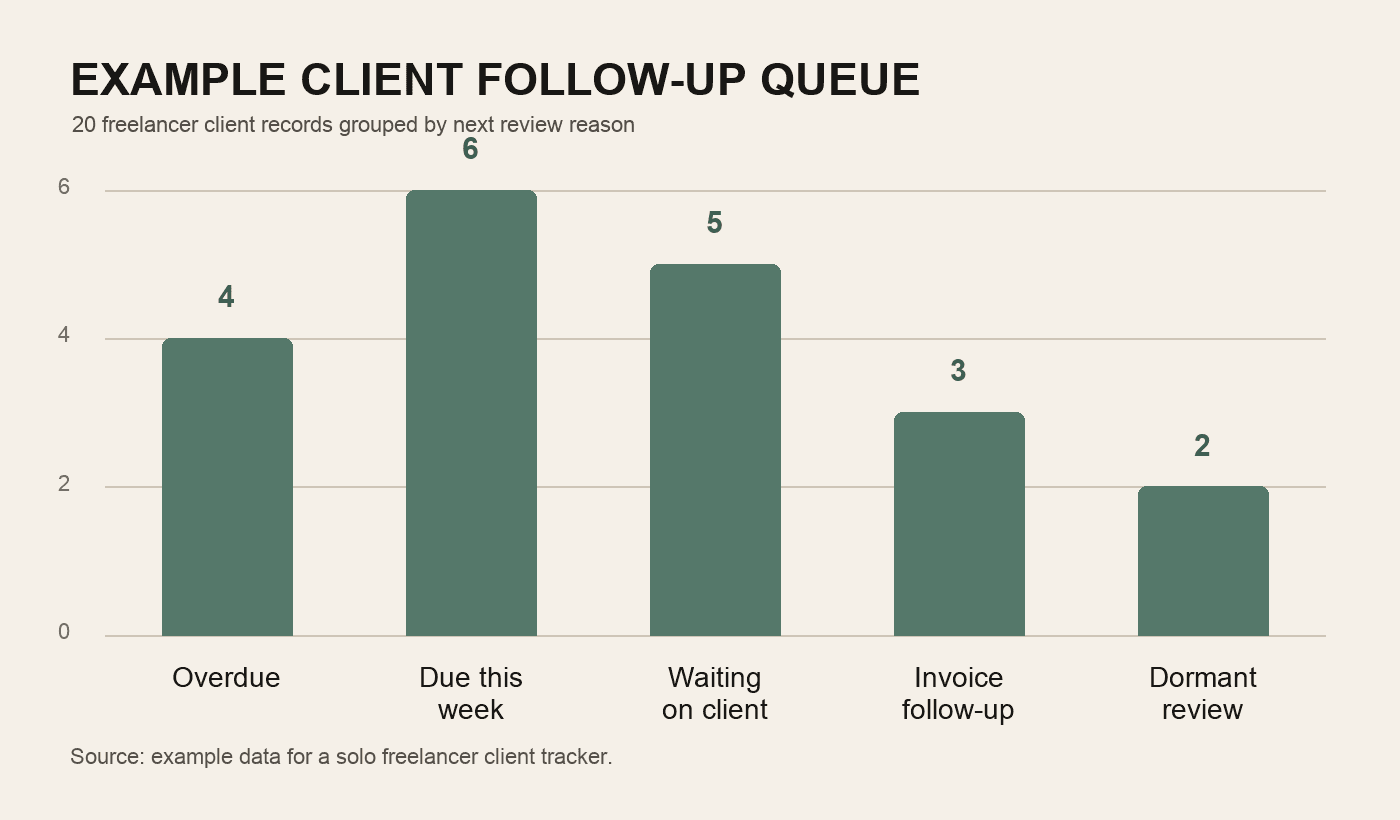
The example queue below shows why a view beats a long notes column. In this sample tracker, 20 records need review. The buckets are 4 overdue, 6 due this week, 5 waiting on a client, 3 invoice follow-ups, and 2 dormant client reviews.
Step 4: add narrow actions
Add actions only after the views work.
Good actions are small:
- Draft a follow-up email from the last note and next action.
- Create a project handoff note.
- Mark a client dormant after the last open follow-up is closed.
- Prepare an invoice reminder from the invoice status and due date.
Avoid vague actions. "Manage client" is too broad. "Draft invoice reminder for overdue invoice" is specific enough to review before sending.
Step 5: review once a week
Set a weekly client review that takes less than 20 minutes.
- Open Next follow-ups.
- Clear overdue actions.
- Check Projects waiting.
- Review unpaid invoices.
- Move quiet leads to dormant or set a real next action.
- Add notes from calls, emails, and project handoffs.
A client tracker fails when review becomes optional. The weekly pass is what turns saved fields into actual client management.
Example setup for freelancers
The starter CSV gives you one flat import file with sample clients, project states, invoice states, and follow-up dates. Use it to try the workflow, then split Clients, Projects, Invoices, and Follow-ups into separate tables when repeated data appears.
| Workflow | Start simple | Split later when |
|---|---|---|
| Client list | One row per client | One client has multiple contacts or projects |
| Project tracking | Project fields beside the client | You need deadlines, blockers, and handoffs per project |
| Invoice review | Invoice status beside the project | You need multiple invoices per client |
| Follow-ups | Next action and follow-up date | You need a history of reminders and outcomes |
This is different from a general Project Tracker for Mac. A project tracker focuses on delivery work. A client tracker keeps relationship, delivery, and payment reminders in one review loop.
Common mistakes to avoid
The first mistake is turning every client detail into a field. Keep freeform notes for context. Use fields for values you need to sort, filter, link, or act on.
The second mistake is mixing accounting with relationship tracking. The client tracker can show invoice status and due dates, but real bookkeeping belongs in accounting software when taxes, reconciliation, receipts, and reports matter.
The third mistake is treating past clients as dead rows. Past clients often need a lightweight review date, not constant outreach.
The fourth mistake is adding automation before the workflow is clear. If you do not know what a good manual follow-up looks like, an automated reminder will only make the mess faster.
How Macrows fits
Macrows fits when a freelancer wants the speed of a sheet with enough structure to manage clients, projects, invoices, and follow-ups together. It is a private spreadsheet database for Mac, so local client work can start on your Mac before you choose what to share.
Use Macrows when you want to:
- Import or paste a client list into a familiar grid.
- Add field types for status, dates, priorities, and payment state.
- Link clients to projects, contacts, invoices, and follow-ups.
- Save views for weekly client review, invoice nudges, and blocked projects.
- Run row actions such as draft follow-up, prepare invoice reminder, or summarize notes.
For adjacent setups, read Content Calendar for Mac when client work is mostly publishing, or Spreadsheet Database for Mac for the broader category.
When Macrows is not the right fit
Use Apple Contacts when you only need names, email addresses, phone numbers, and groups. Do not build a CRM if the job is really an address book.
Use a dedicated CRM when several people need shared sales reporting, pipeline ownership, email sequences, lead routing, forecasting, or admin controls. HubSpot describes CRM contact management around contact records, companies, deals, tasks, calls, and team follow-up: HubSpot contact management.
Use Airtable when the client tracker should be a browser-first shared base with templates, forms, interfaces, and team workflows from the beginning. Airtable maintains a Sales and CRM template category for that kind of shared setup: Airtable Sales and CRM templates.
Use accounting software when payment collection, tax reporting, reconciliation, receipts, and recurring invoices are the main job. A client tracker can remind you to follow up; it should not pretend to be your books.
FAQ
What is the best client tracker for Mac?
The best client tracker for Mac is the one that matches your client workflow size. Use Contacts for a simple address book. Use a spreadsheet for a small list, Macrows for a structured local client workflow, and a full CRM when a team needs shared sales operations.
Can I use a spreadsheet as a client tracker?
Yes, a spreadsheet works when the list is small and the follow-up process is light. Add structure when projects, invoices, contacts, and reminders start competing inside the same row.
What fields should a freelancer client tracker include?
Start with client, primary contact, status, project, project status, invoice status, last contact, next action, follow-up date, priority, and notes. Add separate tables once one client has many contacts, projects, invoices, or reminders.
Is a client tracker the same as a CRM?
A client tracker is a lightweight CRM for freelancers and consultants. It usually focuses on relationship memory, active work, invoices, and follow-ups rather than team sales reporting.
When should I use a full CRM instead?
Use a full CRM when client work becomes team sales work. Shared ownership, lead routing, sales sequences, forecasting, call logging, permissions, and management reporting are stronger reasons to choose dedicated CRM software.