The best content calendar for Mac is a structured planning database, not just a month view with publish dates. Use a spreadsheet database when each piece also needs a campaign, draft status, asset checklist, approval status, owner, channel, and repeatable next action.
A flat sheet is fine for a small publish-date list. It starts breaking when blog posts, social posts, screenshots, reviewer notes, and launch themes live in different places.
Macrows fits that middle case as a private spreadsheet database for Mac. A creator, consultant, agency operator, or small team can plan content from a familiar grid before deciding what should move into a shared cloud workspace.
Content calendar vs editorial calendar on Mac
A content calendar for Mac usually tracks the operational work: content items, owners, drafts, assets, approval status, publish dates, and next actions. An editorial calendar focuses more on themes, publishing cadence, channels, audience, and messaging decisions.
Many small teams need both in one place. Use the editorial calendar view to decide what should ship, then use the content workflow views to see which drafts, assets, and approvals are blocking publishing.
Why content calendars outgrow spreadsheets
Content calendars usually start as a simple sheet: title, channel, owner, status, publish date. That works until the calendar has campaigns, assets, approvals, revisions, formats, distribution notes, and results.
The first failure is usually duplicated context. A blog post sits in one tab, its social posts sit in another, campaign notes sit in a doc, assets live in a folder, and approvals happen in messages. The calendar date is visible, but the workflow around that date is scattered.
A useful content calendar for Mac should answer practical questions quickly:
- What is shipping this week?
- Which drafts are waiting on review?
- Which assets are missing?
- Which posts belong to this campaign?
- Who owns the next action?
- Which finished pieces still need distribution?
If the calendar cannot answer those questions, it is only a schedule. A content calendar becomes useful when it also tracks the work behind the schedule.
What a content calendar should track
Start with the records that repeat every week. A good content calendar can be small, but it should not treat every detail as loose text in one wide sheet.
| Table | Core fields | Useful views |
|---|---|---|
| Campaigns | Name, goal, audience, start date, end date, priority | Active campaigns, upcoming launches |
| Content items | Title, campaign, channel, format, owner, status, publish date | Calendar, drafts due, publishing this week |
| Assets | Content item, file or link, asset type, owner, status | Missing assets, ready for review |
| Approvals | Content item, reviewer, status, due date, notes | Waiting approval, overdue approvals |
| Channels | Channel, cadence, audience, format notes, owner | Active channels, paused channels |
| Results | Content item, metric, value, date checked, notes | Needs review, winners to reuse |
You do not need every table on day one. For a solo creator, Campaigns, Content items, and Assets may be enough. For client work or a small agency, Approvals and Channels often become important quickly.
The key is separating things that repeat. A campaign can have many content items, and one item can have several assets. A reviewer can approve several drafts. Linked records keep those relationships clean without copying the same campaign name across every tab.
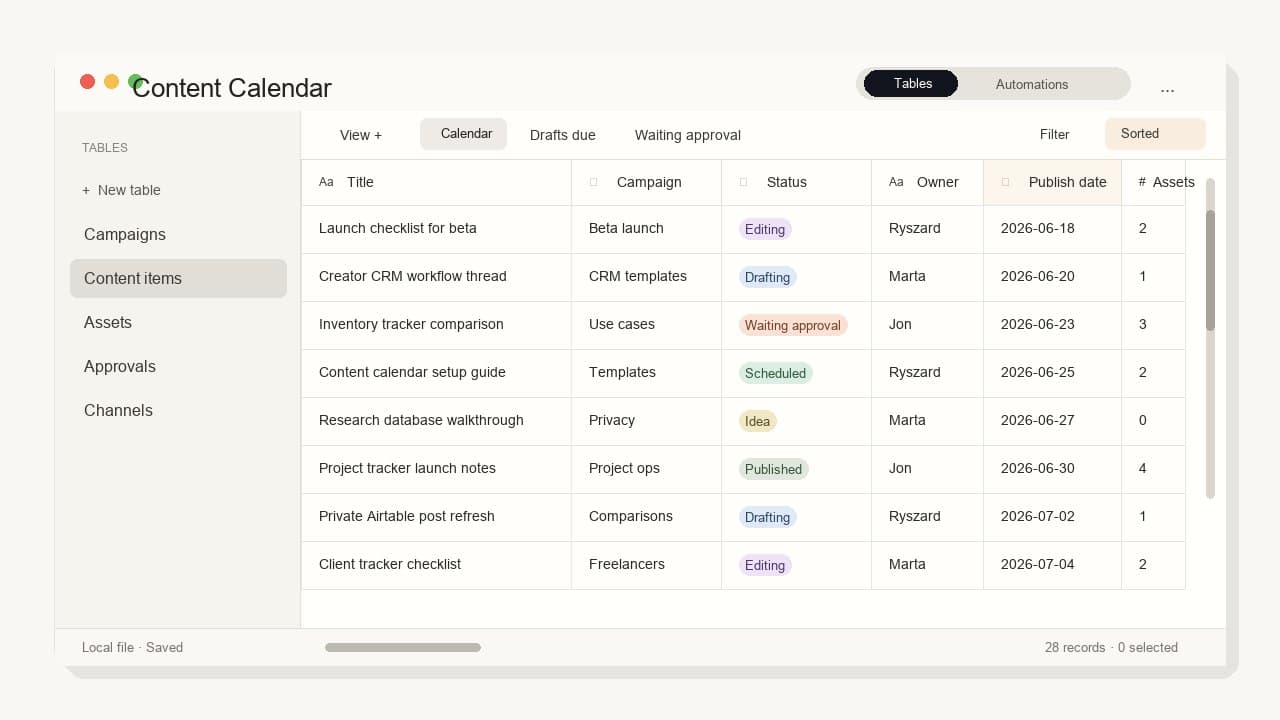
Views every content calendar needs
Views should match the decisions you make during planning, not just the way the calendar looks.
| View | Shows | Use it for |
|---|---|---|
| Publishing this week | Approved items with near publish dates | Weekly scheduling |
| Drafts due | Content items still in draft status | Writing focus |
| Waiting approval | Items blocked by review | Follow-up and handoff |
| Missing assets | Posts without finished creative, screenshots, or links | Production checks |
| By campaign | All content connected to one campaign | Launch planning |
| Repurpose next | Finished pieces worth turning into another format | Distribution planning |
A month calendar is useful, but it should not be the only view. Most content work is not blocked by the date. It is blocked by an owner, missing asset, unclear status, or approval that has not happened yet.
A simple content workflow
Build the workflow before adding automation. The first version should make the manual process clear.
- Capture ideas in the Content items table with a rough channel, format, and campaign.
- Pick a small set for the next week or campaign period.
- Assign an owner and draft due date before adding a publish date.
- Link each content item to the assets it needs.
- Move the item through statuses such as idea, drafting, editing, waiting approval, scheduled, published, and repurpose.
- Review the waiting approval and missing assets views twice a week.
- After publishing, add results only if they change what you will do next.
This keeps the calendar operational. It avoids the common trap where every content idea gets a date, but nobody can see what is actually ready.
Download a starter content calendar CSV
Use the starter CSV as the first Content items table. It includes realistic sample rows for title, campaign, channel, format, owner, status, draft due date, publish date, asset status, approval status, and next action.
Start with that one table before adding linked Campaigns, Assets, or Approvals tables. If the sample fields are not useful during your weekly review, remove them before you add more structure.
Which tool should you use?
The right tool depends on whether your content calendar is mainly a private planning system, a shared team process, a notes workspace, or a publishing queue.
| Tool category | Good fit | Watch out for |
|---|---|---|
| Macrows | Private Mac planning, campaign tables, linked assets, saved views, row actions | Not the best fit for large teams that need browser-first collaboration today. |
| Airtable | Shared content bases, multiple views, owners, campaigns, social calendar templates | Can be more workspace than a solo Mac workflow needs. |
| Asana | Editorial projects with assignments, due dates, review steps, and team coordination | Better for task flow than for private database-style planning. |
| Notion | Content calendars tied to pages, briefs, notes, and workspace knowledge | Works best when your team already plans in Notion. |
| CoSchedule or another social tool | Social publishing, scheduling, queues, and performance review | Better for distribution than for a private source-of-truth database. |
| Google Sheets, Excel, or Numbers | Lightweight lists and simple publish-date calendars | Spreadsheets get fragile when campaigns, assets, approvals, and views multiply. |
Airtable's own social media calendar guidance says a social calendar should let you filter by campaign, category, topic, or platform. It also lists ownership, workflow adjustment, and automation as useful planning needs. That is the right test for any content calendar tool. If your sheet cannot do those jobs cleanly, it probably needs more structure.
Notion Calendar is useful when content dates should appear beside work in Notion databases. Notion's getting-started guide says dated database items can appear in the calendar and update when moved. That is a good fit if drafts and notes already live in Notion.
CoSchedule is a better answer when the main job is social publishing. Its Social Calendar page focuses on creating, scheduling, publishing, and measuring social content from one calendar.
Google Sheets can work for a simple shared calendar, and Google's help docs explain how to turn on offline access for Docs, Sheets, and Slides. It is still a spreadsheet, though. Offline access does not give you linked records, approval views, campaign relationships, or row actions by itself.
How Macrows fits
Macrows fits content calendars that start as a spreadsheet but now need structure around campaigns, content items, assets, approvals, dates, and repeated handoffs.
Use Macrows when you want to:
- Start from a familiar grid instead of a blank project-management setup.
- Turn loose status columns into consistent fields.
- Link content items to campaigns, assets, channels, and approvals.
- Save views for drafts due, waiting approval, missing assets, and publishing this week.
- Keep the first working copy private on your Mac.
- Add row actions for repeatable steps such as preparing a brief, drafting a follow-up, or updating a record after review when that workflow is configured.
For the broader category, read Spreadsheet Database for Mac. If the content calendar is part of a bigger operations tracker, read Project Tracker for Mac. If you are comparing shared cloud bases with Mac-first work, read Airtable Alternative for Mac.
Macrows is not trying to replace every content tool. It is the better fit when the calendar is really a private or small-team database: campaigns, drafts, assets, approvals, and next actions in one place.
When Macrows is not the best content calendar
Use Asana, Airtable, Notion, or another shared workspace when a larger team operates the calendar every day. Comments, mentions, permissions, notifications, forms, and cross-functional handoffs may matter more than a native Mac working surface.
Use CoSchedule or another social tool when scheduling and publishing to social platforms is the main job. A database can plan the work. A social publishing tool is better for queues, channel-specific previews, approval workflows, and performance reports.
Use Google Sheets, Excel, or Numbers when the work is simple. If you only need title, owner, publish date, and status, a spreadsheet may be enough.
Use a digital asset manager when the hard part is storing, tagging, approving, and reusing large creative files. A content calendar can track assets, but it should not become the file library for a media-heavy team.
Macrows is strongest when the work is Mac-native, private, table-first, and close to the spreadsheet you already wanted to fix.
Decision rule
Choose the tool by asking what breaks first.
If publish dates are the only problem, use a calendar or spreadsheet. If assignments and team handoffs break first, use Asana or Airtable. If social scheduling breaks first, use a social media calendar. If campaigns, drafts, assets, approvals, and notes are spread across tabs, use a spreadsheet database like Macrows.
Then start small:
- Create one Content items table.
- Add Campaigns only when content belongs to repeated launches or themes.
- Add Assets when creative files start blocking publishing.
- Add Approvals when review status becomes hard to remember.
- Add views before adding new fields.
- Add row actions only after the manual workflow is predictable.
The best content calendar is the one you can review every week without cleaning it first.
Try Macrows with one content calendar
If your content plan already lives in a spreadsheet, join the Macrows waiting list and rebuild one active campaign first. Start with Content items, Campaigns, and Assets. Add approvals only when review work starts slowing you down.
Do not migrate every old idea. Move the live work, create the views you actually check, and keep the structure light until the calendar proves it helps.
FAQ
What should a content calendar for Mac include?
A content calendar for Mac should include content items, campaigns, channels, owners, statuses, publish dates, assets, approvals, and views for drafts due, waiting approval, missing assets, and publishing this week.
What is the difference between a content calendar and an editorial calendar on Mac?
An editorial calendar decides what topics, channels, campaigns, and themes should publish. A content calendar tracks the work needed to publish them: drafts, assets, approvals, owners, publish dates, and follow-up actions.
Can I use Apple Calendar as a content calendar?
Yes, if you only need publish dates. Use a database or spreadsheet when each content item also needs owners, assets, campaign context, approval status, notes, and follow-up actions.
Is Google Sheets enough for a content calendar?
Google Sheets is enough for a simple shared list. Move to a spreadsheet database when the calendar needs linked campaigns, asset tracking, approval views, controlled status fields, and repeated workflows.
Is Macrows an Airtable alternative for content calendars?
Macrows can be an Airtable alternative for private Mac content calendars. Airtable is better when the content calendar is shared by default and needs forms, interfaces, permissions, and mature browser collaboration.
When should I use a social media calendar tool instead?
Use a social media calendar tool when you need to schedule posts, preview channel-specific content, publish directly, manage queues, and measure social performance from the same system.
How do I turn a content spreadsheet into a content calendar?
Start by adding consistent status, owner, channel, format, and publish date fields. Then separate campaigns, assets, and approvals into their own tables only when those details repeat or block publishing.