The right spreadsheet database for Mac keeps a spreadsheet-style grid but adds database structure for real workflows. Use one when your client sheet, project tracker, inventory list, or research table needs statuses, relationships, saved views, row actions, and safer imports without becoming a full custom database.
The tradeoff is familiar to Mac users. A normal spreadsheet is fast at the start. A full database is safer at scale, but often too heavy.
A spreadsheet database sits between them: it keeps sheet-style editing while treating rows as records and columns as defined fields. That middle ground matters when the sheet has stopped being a file and has become the place where work gets followed up.
What is a spreadsheet database?
A spreadsheet database is a table-based tool that borrows from both spreadsheets and databases. It still feels like rows and columns, but it adds rules around what each column means.
In a normal spreadsheet, a column named Status can contain anything: "Lead", "lead", "maybe", "urgent", or a blank cell. In a spreadsheet database, that same column can become a select field with approved values. That small change makes filtering, reporting, views, and actions more reliable.
The database side matters when one table needs to connect to another. A CRM may have Contacts, Companies, Deals, and Activities. A project tracker may have Projects, Tasks, People, and Milestones. An inventory tracker may have Products, Vendors, Locations, and Stock Changes.
You can force those relationships into separate spreadsheet tabs, but the links are fragile. A spreadsheet database keeps the relationship visible and reusable.
Why spreadsheets break when they become systems
Spreadsheets usually break slowly. The first version is clear because one person understands every row. Then the sheet becomes useful, so more work gets added.
Common warning signs:
- Tabs duplicate the same data with slight differences.
- Status values drift because people type their own labels.
- Important dates are hidden in notes columns.
- Follow-ups live in comments, reminders, or memory.
- A contact appears in one tab, a deal in another, and the next action somewhere else.
- Filters become personal, so each person keeps a separate copy.
- CSV imports need the same cleanup every week.
None of this means the spreadsheet was a mistake. It means the spreadsheet has become a workflow. At that point, the table needs structure, not just more columns.
A database can solve this, but a traditional database asks for design work too early. Tables, schemas, queries, permissions, and app screens can be more setup than a solo operator or small team needs. The missing middle is a spreadsheet database: enough structure to keep work clear, with enough grid editing to stay fast.
What Mac users should look for
A good Mac spreadsheet database should feel local and practical first. It should make the common spreadsheet jobs easy before it asks you to design an app.
| Feature | Why it matters |
|---|---|
| Real field types | Selects, dates, numbers, buttons, and linked records reduce messy data entry. |
| Saved views | One table can show follow-ups, overdue work, open projects, or low stock without copying data. |
| Linked records | Contacts can connect to companies, projects to tasks, and products to vendors. |
| Formulas | Calculations stay near the data instead of moving to another tool. |
| Import and export | CSV and Excel paths matter because spreadsheet work rarely starts from zero. |
| Row actions | Buttons can turn repeated steps into commands, such as drafting a follow-up or creating a task. |
| Local privacy | Client lists, research notes, and early operations work often should not start in a shared cloud base. |
Current official docs show the broader tradeoff. Airtable describes a base as a place for important data and workflows, with records stored in fields across tables: Airtable bases guide. Airtable also explains linked records as a way to create relationships between tables: Airtable linked records guide.
Airtable's own plan and support docs also show why it remains strong for shared cloud operations. Paid plans list automations, forms, Interface Designer, timeline and Gantt views, locked and personal views, and restricted share links. Its permissions overview covers workspaces, bases, interfaces, the admin panel, and forms: Airtable plans overview, Airtable permissions overview.
That is useful structure. The question for Mac users is where the first copy of the workflow should live. If it should live in a shared cloud workspace, Airtable is often the stronger pick. If it should start private on a Mac, a local spreadsheet database is a better starting point.
What this looks like in Macrows
A spreadsheet database should still feel like a table you can scan. This Macrows CRM view shows a familiar grid with saved views, select fields, number fields, sorting, and table navigation in one window.
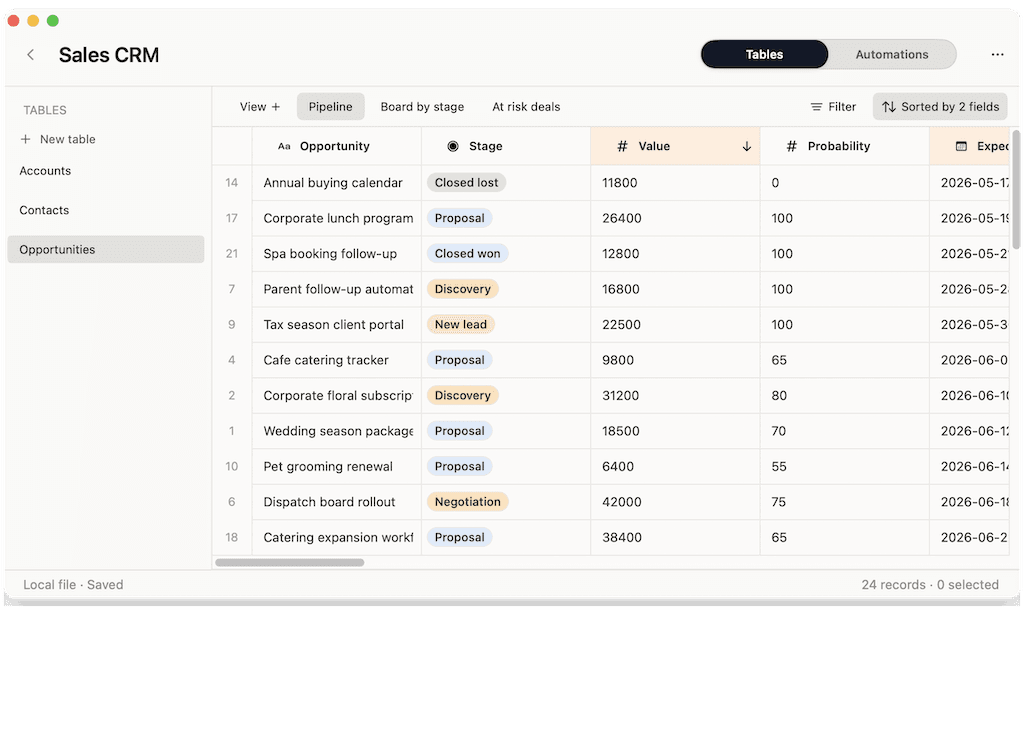
The visual point is simple: structure should make the table more reliable without hiding the working grid. If the tool forces you to design screens before you can clean records, it may be solving a heavier problem than this category needs.
Example: personal CRM schema
A personal CRM is the cleanest example because most people start with one contact sheet. The sheet works until follow-ups, companies, deals, and notes become separate problems.
| Table | Fields | Views | Actions |
|---|---|---|---|
| Contacts | Name, company, status, last contact, next action | Follow up today, warm leads, inactive | Draft follow-up, enrich lead |
| Deals | Company, value, stage, owner, close date | Pipeline, closing this month | Move stage, create next task |
| Activities | Contact, date, type, notes | Recent, overdue | Summarize notes |
This structure avoids the usual CRM spreadsheet trap. The contact is not copied into every deal row. Activities do not disappear inside a notes column. Follow-ups are visible because Next action and Last contact are real fields.
For a solo consultant, this can be enough. The CRM needs to answer practical questions:
- Who should I contact today?
- Which deals are active?
- Which clients have gone quiet?
- What happened in the last conversation?
- What task should happen next?
If those answers are buried in a flat sheet, the CRM will fail even if the columns look tidy.
Example: project tracker schema
A project spreadsheet starts with names, owners, dates, and status. It becomes harder when tasks belong to projects, milestones belong to clients, and risks need their own view.
| Table | Useful fields | Saved views |
|---|---|---|
| Projects | Name, client, owner, status, start date, deadline, health | Active, at risk, launching this month |
| Tasks | Project, owner, status, priority, due date, notes | My tasks, overdue, blocked |
| People | Name, role, email, workload | Owners, reviewers, external contacts |
| Milestones | Project, date, type, status | Upcoming, missed, completed |
The database part appears when Tasks link back to Projects. A task can belong to one project without repeating the client name, deadline, and project owner in every row.
The spreadsheet part still matters. People need to paste tasks, edit dates, sort by deadline, and scan the grid. A project tracker that hides the table too early becomes another project management app. That can help larger teams, but it can slow down Mac-based operators who need a clear working table.
Example: inventory schema
Inventory sheets often start as a list of products. Then vendors, locations, stock changes, and reorder rules appear. If those stay in one flat tab, errors become easy.
| Table | Useful fields | Saved views |
|---|---|---|
| Products | SKU, name, category, vendor, reorder point, current stock | Low stock, active products, discontinued |
| Vendors | Name, contact, lead time, payment terms | Preferred, slow lead time |
| Locations | Name, type, address, notes | Store, storage, supplier |
| Stock changes | Product, location, date, quantity, reason | Recent changes, adjustments, incoming |
The important move is to separate stock events from product records. A product's current stock can be reviewed in the product table, but each stock movement deserves its own row. That gives you a history instead of a number that changes without context.
Use a spreadsheet database when the inventory list needs memory. Use a plain spreadsheet when you only need a simple count and occasional manual edits.
Spreadsheet database vs spreadsheet vs full database
Choosing the right type of app is easier when you name the work honestly.
| Need | Spreadsheet | Spreadsheet database | Full database |
|---|---|---|---|
| Fast data entry | Strong | Strong | Depends on the interface |
| Analysis and charts | Strong | Useful, but not the main point | Usually separate reporting needed |
| Field types | Limited | Strong | Strong |
| Linked records | Fragile across tabs | Built in | Built in |
| Saved working views | Filter views or copies | Core workflow | Built through queries or app screens |
| Local Mac workflow | Strong in native apps | Strong when built for Mac | Strong for technical users |
| Cloud collaboration | Strong in Google Sheets, strong in Airtable | Depends on the app | Depends on setup |
| Best user | Spreadsheet user | Operator building a workflow | Developer or technical owner |
Google describes Sheets as online collaborative spreadsheets with comments, co-editing, filter views, and access controls: Google Sheets product page. Microsoft describes Excel as spreadsheet software for analysis, collaboration, and sharing: Microsoft Excel product page.
Those tools are still excellent for many jobs. If the main output is a chart, budget, financial model, pivot table, or shared spreadsheet, use a spreadsheet. If the output is an operating workflow with records, statuses, relationships, and repeated actions, use a spreadsheet database.
Apple Numbers also matters for Mac users. Apple's Numbers docs cover importing Excel and text files and exporting to Excel, CSV, TSV, and PDF: Numbers import guide, Numbers export guide. Numbers is a good fit for polished spreadsheets, lightweight tracking, and Apple-native documents. It is not the same job as a database with linked records and row actions.
How Macrows fits
Macrows is a private spreadsheet database for Mac. It is built for people who want Airtable-style structure, spreadsheet familiarity, native macOS speed, and no-login local use for local projects. The current pricing page lists local use as free, with an account needed only for Pro sharing.
That makes Macrows a good fit when your work starts in a spreadsheet but now needs:
- Real fields instead of loose columns.
- Saved views instead of duplicate tabs.
- Linked records instead of copied names.
- Row actions instead of repeated manual steps.
- CSV, Excel, and Google Sheets import, plus lightweight Excel export paths.
- A private local starting point before sharing.
Macrows is especially well matched to personal CRM, project tracking, inventory, research databases, content calendars, and lead cleanup. Those workflows often begin with imported data or a homemade sheet. They need enough structure to become reliable, but they do not always need a cloud app, shared portal, or enterprise admin model.
Row actions are useful in this category when they stay attached to the record in front of you: clean this imported lead, draft this follow-up, summarize these notes, or prepare the next task. The roadmap lists local AI setup for cleanup, extraction, and summaries as available now, but choose Macrows for the local spreadsheet database workflow first. Do not choose it only because you need mature team automation today.
For Airtable-specific tradeoffs, see Macrows vs Airtable and Airtable Alternative for Mac. For workflow examples, see Personal CRM for Mac. For privacy and local ownership questions, see Private Airtable Alternative and Can Airtable Work Offline?.
When Macrows is not the right fit
Use Airtable when the database already belongs to a team cloud workflow. Airtable is better when you need mature real-time collaboration, forms, interfaces, external portals, permissions, always-on cloud automations, and admin controls today. Those are current Airtable strengths, not assumptions; Airtable documents plans, forms, interfaces, automations, portals, and permission controls across its official support pages: Airtable plans overview, Airtable permissions overview.
Use Google Sheets when live collaboration around a normal spreadsheet is the main job. It is a better fit for shared budgets, simple trackers, and teams that already work from Google Workspace.
Use Excel when the work depends on advanced spreadsheet modeling, complex workbooks, pivot-heavy analysis, or existing Microsoft 365 workflows.
Use Numbers when you want a polished Apple spreadsheet document and do not need relational structure.
Use a SQL database client when you are connecting to SQLite, Postgres, MySQL, or another technical database. That is a different job from building a private CRM or inventory tracker from a grid.
The point is not to replace every spreadsheet or every database. The point is to choose the lightest tool that keeps the workflow reliable.
A decision checklist
Use this checklist before moving a spreadsheet into any new app.
- List the real tables. Contacts, Companies, Deals, and Activities are separate tables, not just tabs.
- Name the fields that need rules. Status, priority, owner, date, currency, and relation fields should not be free text.
- Decide which views matter. Follow-up today, overdue, low stock, blocked, and closing this month are working views.
- Find repeated actions. Draft follow-up, create task, enrich lead, update stage, or export report are candidates for buttons.
- Decide where the first copy should live. Private Mac work belongs local first. Shared team work may belong in a cloud tool.
- Keep exits open. Make sure import and export are part of the workflow, not a late surprise.
If the answer is mostly "I need a better spreadsheet," stay with a spreadsheet. If the answer is "I need this sheet to run the work," choose a spreadsheet database.
Download Macrows
If you want to build private spreadsheet databases on your Mac, download Macrows. Start with one real workflow: a client list, project tracker, inventory sheet, research database, or content calendar. The goal is not to rebuild every spreadsheet. It is to turn the one that already matters into a system you can trust.
FAQ
What is the best spreadsheet database for Mac?
The best spreadsheet database for Mac is the one that matches where the work should live. Macrows fits private Mac-native workflows. Airtable fits shared cloud workflows. Excel, Google Sheets, and Numbers fit normal spreadsheet work.
Is a spreadsheet database the same as Airtable?
No. Airtable is a major example of a spreadsheet-database tool, but the category is broader. A spreadsheet database means sheet-style editing with database features such as field types, linked records, saved views, and actions.
Can I use Excel or Numbers as a database on Mac?
You can use Excel or Numbers for simple lists, trackers, and analysis. They become harder to trust when the workflow needs linked records, strict field values, reusable views, and row-level actions.
When should I move from a spreadsheet to a database?
Move when the sheet has become a workflow. Warning signs include duplicate tabs, inconsistent statuses, hidden follow-ups, copied contact names, and repeated cleanup after every import.
Does Macrows replace Airtable?
Macrows can be a better fit than Airtable for private Mac-first workflows such as personal CRM, project tracking, inventory, research, and lead cleanup. Airtable is still the better fit for shared cloud apps, interfaces, forms, permissions, and larger team operations.
Can a spreadsheet database stay private on my Mac?
Yes, if the app is designed for local Mac projects. The Macrows privacy page says local projects are stored on your Mac and are not uploaded to Macrows Cloud by default. That lets you structure a workflow before deciding whether it needs sharing, sync, or cloud features later.