For a no-code database for Mac, choose the tool that lets you turn a spreadsheet into tables, fields, views, relationships, and actions without asking you to design a full app. If you are searching for database software for Mac, the practical question is whether the workflow needs a private grid, a shared cloud base, or a custom app builder.
A simple contact list can stay in Numbers or Excel; a working CRM, project tracker, inventory list, or client database needs more structure.
The tradeoff is setup. Cloud no-code app builders are useful when a team needs shared screens and permissions. A Mac-native spreadsheet database is better when one operator wants a local grid that can grow into a system.
This article owns the "how to choose the category" decision. For the broader app-type comparison, read Database App for Mac. For the spreadsheet-database concept behind Macrows, read Spreadsheet Database for Mac.
What a no-code database means on a Mac
A no-code database is a database you can shape through a visual interface instead of SQL, scripts, or application code. It should let you create tables, define field types, build views, connect records, and act on the data.
The category is broad. Airtable describes itself as a connected apps product where teams build custom apps on shared data with no code: Airtable guide. Baserow describes an open-source no-code database for databases, apps, and automations: Baserow basics. NocoDB presents a no-code database interface with spreadsheet-like editing: NocoDB.
Those are valid choices for the right job. On a Mac, the question is narrower: should this workflow become a shared app, a technical database, or a private working grid?
Why spreadsheets stop being enough
Spreadsheets are a good starting point because they do not demand a model first. You can paste a CSV, add columns, filter rows, and get to work.
They become weaker when the sheet starts running the business process. A client row needs a next action, while a project row needs tasks and owners.
Inventory rows need vendors, locations, and stock changes. Research rows need sources, claims, notes, and follow-ups.
At that point, the problem is not the spreadsheet format. The problem is that too many jobs are hiding in one table.
Google Sheets can add dropdowns through data validation: Google Sheets dropdowns. Apple Numbers can import and export Excel or text files, including CSV: Numbers import, Numbers export. Those features help with cleaner spreadsheet work, but they do not create linked records, reusable views, or row-level actions by themselves.
What to look for in a no-code database
Tables that match real things
Start with the nouns in the workflow. Contacts, Companies, Deals, Activities, Projects, Tasks, Vendors, and Products should not all live as loose columns in one sheet.
Use separate tables when the same thing appears repeatedly. If one company has many contacts, the company deserves its own table. If one project has many tasks, tasks should not be hidden inside one notes cell.
Field types that reduce cleanup
Fields are the first no-code upgrade from a spreadsheet. A Status field should use approved choices, while a Due date field should behave like a date.
A Budget field should act like a number. A Client field should point to a client record, not a copied name.
The goal is not strictness for its own sake. The goal is fewer broken filters, fewer duplicate labels, and fewer mystery values when you review the work later.
Views that answer working questions
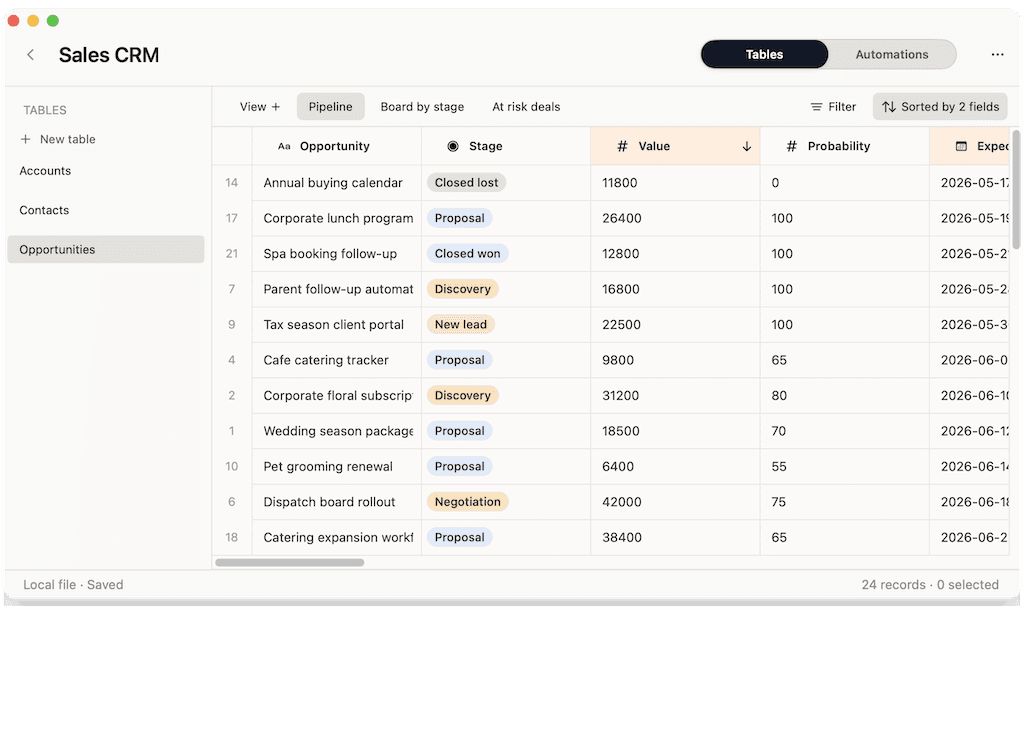
Views turn one table into several working lists without copying rows. A CRM might need Follow up today, Warm leads, Quiet contacts, and Active deals. A project tracker might need Overdue, Blocked, By owner, and Client handoff.
Good views are tied to decisions. If a view does not change what you do next, it is probably decoration.
Relationships that stop duplicate data
Linked records are useful when one table needs to refer to another. A contact can belong to a company. A task can belong to a project. A product can belong to a vendor.
Without relationships, people usually copy names across tabs. That works until one name changes, one row is duplicated, or one related note disappears from the place you expected to find it.
Actions that sit near the row
No-code databases become more useful when the next step sits next to the record. A row button can draft a follow-up, prepare a status note, normalize imported data, or mark a record for review.
Keep actions narrow at first. A good action removes one repeated step. A vague automation creates another system you have to debug.
Import, export, and ownership
Most business databases start with existing data. Check whether the tool can bring in CSV or spreadsheet data and whether it gives you a practical way out.
Ownership matters too. If the data is sensitive or experimental, decide whether the first working copy should be local on your Mac, in a team cloud workspace, or on infrastructure someone has to maintain.
How to design one from a spreadsheet
Step 1: name the one job the database owns
Do not start with every workflow in the business. Pick one job: client tracking, project delivery, inventory reorder, research sources, content production, or lead cleanup.
The first no-code database should be small enough to understand in one sitting.
Step 2: split the sheet into real tables
Look for columns that describe different things. A client spreadsheet with company details, contact details, invoice notes, project status, and follow-up dates is not one table. It is several tables pretending to be one.
Use the split only when it reduces confusion. A tiny list with 30 rows may not need five tables yet.
Step 3: convert messy columns into fields
Turn inconsistent text into select fields, dates, numbers, links, and checkboxes. This is where the database starts paying back the setup.
Keep the first pass conservative. Fix the fields that make views and follow-ups reliable before you polish every column.
Step 4: build views around review habits
Views should match how often you work. Daily views show urgent follow-ups, overdue tasks, open work, and low-stock items. Weekly views show stale relationships, blocked projects, aging deals, and records missing key fields.
If the database has no review habit, it will become another storage place.
Step 5: add actions after the manual step is clear
Do the task manually a few times before adding a button or automation. That makes the action easier to name and safer to trust.
Good early actions are small: create a next task, draft an email, update a status, summarize notes, or clean a pasted row.
Example client database structure
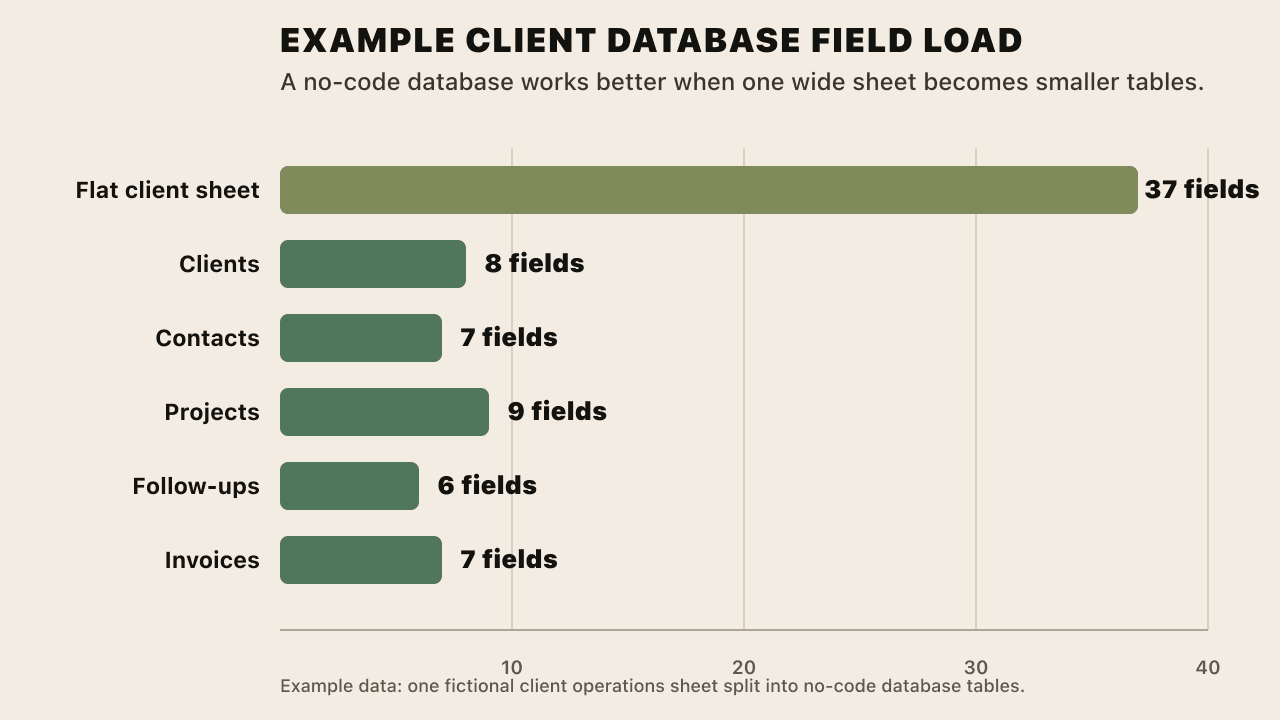
A simple client operations database might start as one wide spreadsheet. It becomes easier to work with when the field load is split across tables.
| Table | Example fields | Useful views |
|---|---|---|
| Clients | Name, type, status, priority, owner, start date, renewal date, notes | Active, renewal soon, high priority |
| Contacts | Name, client, role, email, phone, last contact, next action | Follow up today, quiet contacts |
| Projects | Client, name, status, owner, budget, start date, due date, health, next step | Overdue, blocked, by owner |
| Follow-ups | Contact, project, due date, channel, status, notes | Due today, waiting, completed |
| Invoices | Client, project, amount, issue date, due date, status, notes | Unpaid, due this week, paid |
This example is not a survey or benchmark. It is a design aid: one wide row is harder to review than several smaller tables with clear jobs.
How Macrows fits
Macrows is a private spreadsheet database for Mac. It fits the no-code database job when the workflow should start from a familiar grid, stay local by default, and gain structure only where the spreadsheet is starting to fail.
Use Macrows when you want local Mac projects, no-login local use, CSV and spreadsheet imports, defined fields, saved views, record links, formulas, row buttons, and actions close to the table. The current pricing page says local use is free and an account is only needed for Pro sharing.
This is why Macrows is a good fit for personal CRM, client tracking, projects, inventory, research, and content planning. Those workflows often begin as one sheet. They need enough structure to become reliable, but not always a full shared app.
For a concrete CRM setup, read Personal CRM for Mac. If you already have a contact sheet and want conversion steps, read Turn Spreadsheet Into CRM.
When Macrows is not the right fit
Use Airtable when the database is shared by default and needs browser-first collaboration, forms, interfaces, permissions, and mature team workflows today. Airtable's own guide frames the product around custom apps built on shared data: Airtable guide.
Use FileMaker when the real job is custom application development. Claris describes FileMaker Pro as a development tool for custom apps that work across Mac, Windows, iPhone, iPad, and the web: FileMaker Pro basics.
Use Baserow when open-source or self-hosted control matters more than a native Mac working surface. Use NocoDB when you want a spreadsheet-like interface for a database you bring. Use Numbers, Excel, or Google Sheets when the work is still a normal spreadsheet, analysis model, or simple shared table.
Macrows is best when you want the database to feel like a Mac grid first.
FAQ
What is a no-code database for Mac?
A no-code database for Mac is a tool that lets you create tables, fields, views, relationships, and actions without programming. The Mac part matters when you want the working copy to feel native, private, and close to your existing spreadsheet files.
What is the best no-code database software for Mac?
The best no-code database software for Mac depends on the workflow. Use Macrows when a private spreadsheet needs fields, linked records, saved views, formulas, and row actions. Use Airtable when browser collaboration, forms, and shared permissions matter first.
Is Macrows Mac database software or an app builder?
Macrows is Mac database software for spreadsheet-shaped work. It is closer to a private spreadsheet database than a full app builder, which makes it useful for CRMs, project trackers, inventory lists, research databases, and content workflows that still need a grid.
Is Airtable a no-code database?
Yes. Airtable is a no-code database and app-building product for shared data. It is often the better choice when the workflow belongs in a browser workspace with collaborators, forms, interfaces, and team controls.
Can I use Numbers or Excel as a no-code database?
Numbers or Excel can handle simple lists and spreadsheet models. Move to a no-code database when the work needs linked records, controlled fields, saved views, follow-up workflows, or actions attached to rows.
What should I build first in a no-code database?
Build the workflow that already causes cleanup pain. Good first projects are a client tracker, personal CRM, project tracker, inventory list, content calendar, or research source database.
Is Macrows better than a cloud no-code app builder?
Macrows is better when the first copy should stay local on your Mac and the grid is still the main work surface. A cloud app builder is better when several people need shared screens, permissions, public forms, or web access from the beginning.