When a spreadsheet holds client notes, lead lists, or research sources, a local AI spreadsheet workflow is the safer default when the data should stay on your Mac. Use local AI for bounded row transformations; use cloud AI only when fresh web context, larger models, or shared team workflows are worth the data boundary.
Start with one row job: clean a messy import, extract fields from notes, classify records, summarize notes, or flag rows for review. Save the output in fields with a review status so you can sort, filter, correct, and audit it later.
Use the workflow table as the pattern before you choose a model, app, or automation.
What local AI spreadsheet workflows mean
A local AI workflow runs the model on the computer or device that holds the work, instead of sending every prompt and row to a remote AI service. In spreadsheet work, that usually means the input is a row, note, CSV field, or pasted text block, and the output becomes a field you can sort, filter, or review.
The local-first idea is older than the current AI cycle. The Ink & Switch local-first software paper frames it as software that preserves user ownership while still allowing collaboration and sync when needed. Local AI adds a second boundary: the model should also run close to the data when privacy, offline access, or repeatable review matters.
On a Mac, Apple says the Foundation Models framework gives developers access to the same on-device model that powers Apple Intelligence: Apple Foundation Models. Tools such as Ollama and LM Studio let users run downloaded models locally. In spreadsheet work, the model should do one narrow job across records and write a structured result back to the table.
Why privacy changes the spreadsheet AI decision
Spreadsheet data is often sensitive before anyone labels it that way. A lead list can include private notes, a research tracker can include unverified claims, and a client spreadsheet can include budget, health, or legal context.
Apple's privacy page says on-device processing lets Apple Intelligence handle many requests without leaving the device, while more complex requests may use Private Cloud Compute: Apple privacy. For spreadsheet users, "private AI" can mean on-device, private cloud, local server, local app analytics, or a mix of those.
Do not treat local as a synonym for zero-telemetry. A tool can run the model locally and still collect app diagnostics, account events, or website analytics. If zero-telemetry is a hard requirement, read the privacy policy, check whether the app works without login, and test whether the task needs a network connection after the model is installed.
What local AI should do with spreadsheet records
Local AI is strongest when the task is narrow, repeated, and easy to inspect. Avoid using it as an invisible decision maker. Use it as a row assistant whose output can be checked by a person.
| Record job | Good local AI input | Output to save | Review rule |
|---|---|---|---|
| Clean imported rows | Messy name, company, role, and notes fields | Normalized company, role, status, and missing fields | Show changed fields before bulk update |
| Extract fields | Email, web page snippet, PDF text, or pasted note | Client, deadline, request, priority, and source | Keep source text linked to the output |
| Classify records | Lead notes, support notes, source summaries, or product feedback | Category, confidence, and reason | Require human review below a confidence threshold |
| Summarize notes | Call notes, research notes, meeting notes, or project updates | Short summary and next action | Keep the original note unchanged |
| Score or flag rows | Deal notes, research confidence, risk notes, or duplicate clues | Score, flag, and explanation | Use scores for review queues, not final decisions |
Use this pattern: send the model a bounded input, store a bounded output, then make the output visible enough to audit.
How to build a local-first data workflow
Step 1: Start with one repeated row job
Pick one task that repeats across many records. Good first jobs are lead cleanup, client-note summaries, research-source classification, duplicate detection, and next-action extraction.
Do not start with "an AI spreadsheet." Start with one column that wastes time or creates mistakes.
Step 2: Keep source fields separate from AI fields
Keep the original text, note, or imported column. Add separate fields for the AI output, review status, confidence, and reviewer.
This makes the workflow reversible. If the model gets a row wrong, you can compare the output with the source instead of guessing what changed.
Step 3: Run a small batch first
Run 10 to 20 records before using the workflow across a full table. Local models vary by hardware, model size, context length, and prompt quality.
Small batches show whether the prompt is clear, whether the output format is stable, and whether the review field catches weak results.
Step 4: Turn the output into a view
The result should create a working view. Examples include "Needs review," "Missing company," "High-priority leads," "Sources to verify," and "Client notes with next actions."
If the output does not change what you review next, remove the AI step.
Step 5: Decide when cloud is worth it
Write the boundary before you run the workflow: which fields stay local, which fields may leave the Mac, who approves the exception, and where the result will be stored.
Treat this as a data-boundary choice, not a general opinion about which AI model is better.
Example Mac workflows
Clean a lead list
A lead CSV usually arrives with inconsistent company names, role titles, notes, and qualification clues. Local AI can normalize the role, extract industry, propose a lead category, and mark rows that need review.
Save the output as fields such as Clean company, Role group, Lead type, Needs review, and AI note. Keep the original imported fields until the cleanup is trusted.
Summarize client notes
Client notes often contain the actual next step, but the next step is buried in a long call note. Local AI can turn the note into a short summary, a follow-up date, and a next-action field.
The review view should show the original note beside the summary. That keeps the workflow useful without pretending the model is a source of truth.
Classify research sources
Research rows can include source title, URL, excerpt, author, date found, and a rough note. Local AI can classify source type, extract the claim being made, suggest a topic, and flag missing metadata.
For sensitive research, keep sources, claims, confidence, and follow-up tasks in a table that can be checked later. For a full schema, read Research Database for Mac.
What to check before choosing a local AI tool
Local LLM tools are improving quickly, but the right question is still operational: can the tool do the job without making your spreadsheet harder to trust?
LM Studio says it can operate offline after model files are available, including chat, document chat, and a local server: LM Studio offline operation. Ollama's macOS docs describe installing the app and note that downloaded models need additional disk space: Ollama for macOS. GPT4All documents private chat with Microsoft Excel files: GPT4All Excel workflow.
For spreadsheet work, also check where the reviewed output goes.
| Check | Why it matters |
|---|---|
| Offline behavior | Some tasks work offline after model download; others still need discovery, sync, or account services |
| Data collection | Local model inference does not automatically mean zero app telemetry |
| Hardware needs | Larger models need more memory, storage, and patience |
| Output control | Spreadsheet work needs stable text, JSON, numbers, booleans, or categories |
| Review state | Sensitive workflows need a way to mark accepted, rejected, or needs review |
| Export and backup | Local control also means you need a backup and exit path |
| Cloud fallback | Some apps may route hard requests to a cloud model unless you disable or avoid that path |
Prefer a local model, narrow prompt, structured output, visible source, review view, and backup.
How Macrows fits
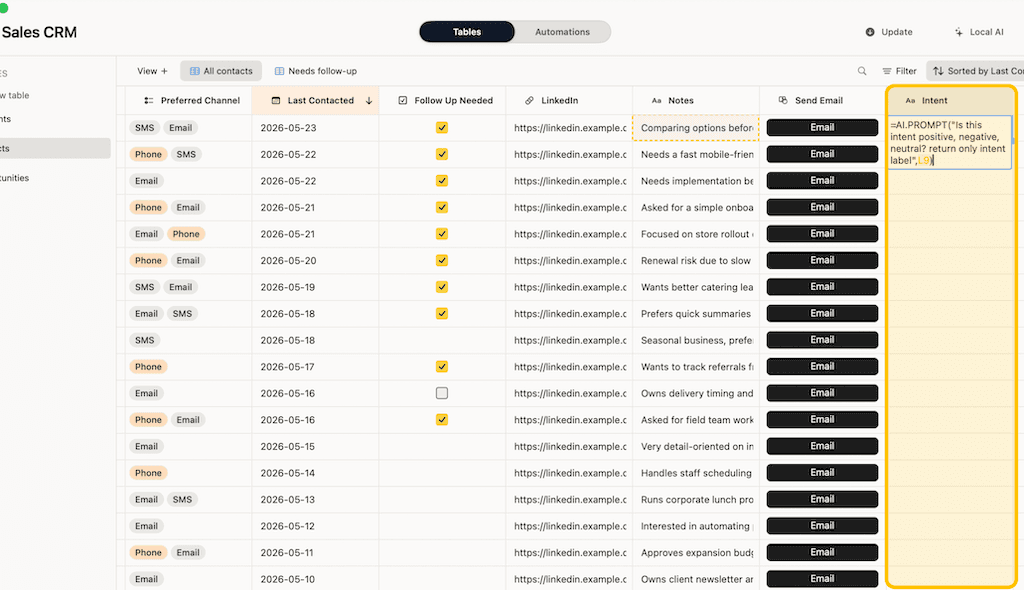
Macrows is a private spreadsheet database for Mac. It fits local AI spreadsheet work when the output should stay inside a record system: fields, saved views, linked context, formulas, buttons, and row actions.
The public Macrows privacy policy says local projects are stored on your Mac and are not uploaded to Macrows Cloud by default. It also says local AI features are designed to work through the local Mac app, and that local project data is not sent to cloud AI services by default.
The roadmap lists local AI setup for table cleanup, extraction, and summaries as available now. That makes Macrows a fit for row-level jobs such as cleaning imported leads, summarizing notes, extracting fields, and classifying research sources.
Use Macrows when the result should become a reviewed field, view, button action, or next step in a table. Use a local chatbot when the work is mostly free-form file Q&A. For the broader privacy tradeoff, read Private Airtable Alternative.
When Macrows is not the right fit
Use LM Studio, Ollama, GPT4All, or another local LLM app when the main job is private chat over files, model testing, coding, or free-form document Q&A. A table-first app is unnecessary when you do not need records, fields, views, or review states.
Use Excel, Numbers, or Google Sheets when the work is still a normal spreadsheet: formulas, charts, lightweight lists, shared editing, or analysis that does not need row actions.
Use Airtable or another cloud database when several people need live browser collaboration, forms, permissions, interfaces, and hosted automation today.
Use a custom script or database pipeline when the data volume is large, the output must be deterministic, or the workflow belongs in production infrastructure.
Macrows is strongest when private spreadsheet data needs local cleanup, structured outputs, and reviewable follow-up inside a Mac table.
FAQ
What is a local AI spreadsheet?
A local AI spreadsheet is a spreadsheet or table workflow where the AI task runs on your device or local machine instead of sending every row to a remote model. Store the result in reviewable fields, not a one-off chat response.
Is local AI the same as zero-telemetry AI?
No. Local AI means the model task can run locally, while zero-telemetry means the app does not collect usage or diagnostic data. Check privacy policies and network behavior separately if zero-telemetry is required.
Can local AI work without internet on a Mac?
Yes, some local AI tools can work offline after the model is installed. Check setup details first: model download, hardware requirements, app updates, account features, or optional cloud fallback may still need internet access.
What spreadsheet tasks are best for on-device AI?
On-device AI is best for bounded row jobs: cleaning imported text, extracting fields, classifying records, summarizing notes, drafting short next actions, and flagging rows for review. It is weaker when the task needs fresh facts from the web.
Should sensitive business data use local AI or cloud AI?
Use local AI first when the data would be risky in the wrong inbox, such as client notes, lead lists, research claims, legal context, or vendor terms. Use cloud AI only after deciding that its stronger model, current context, or shared workflow justifies the upload.
Does Macrows send local project data to cloud AI services?
No, not by default. The Macrows privacy policy says local AI features are designed to work through the local Mac app and local project data is not sent to cloud AI services by default.