The lead enrichment spreadsheet is a cleanup-and-review table for raw lead lists before they move into a CRM or outreach tool. Use the spreadsheet for reviewable enrichment: keep the source columns, add fields for company, domain, role, fit, confidence, review status, and next action, then work the rows from saved views on your Mac.
Start with one imported list. Clean the fields you already have, enrich only the columns that change the next step, and keep a review queue so bad guesses do not become customer data. The schema, starter CSV, and example review graph below give you the working pattern.
What a lead enrichment spreadsheet is
A lead enrichment spreadsheet is a working table for turning raw leads into records you can trust. It usually starts with a CSV from a form, event, directory, newsletter, export, or hand-built prospect list.
The enrichment step adds useful structure: company domain, role group, industry, lead source, fit, confidence, duplicate risk, and next action. The spreadsheet stays useful because a person can still scan rows, correct mistakes, and decide which leads deserve outreach.
That is different from pushing every row straight into a CRM. HubSpot's import docs show how CRM imports can create records and associations from files or pasted spreadsheet data: HubSpot import records. A lead enrichment spreadsheet sits before that step so the list is cleaner before it becomes operational data.
Why lead lists need cleanup first
Lead lists are rarely clean when they arrive. Company names drift, domains are missing, titles use different styles, and duplicate rows slip in. The notes field often holds the real buying signal.
If those problems move into a CRM, every later workflow becomes harder. Follow-up views miss good leads, outreach gets sent to duplicates, and account-level context is copied across several rows.
The safer pattern is to treat enrichment as a review workflow, not a blind overwrite. Add the enriched fields beside the raw source fields, then approve or reject the result.
Use this lead enrichment schema
Start with a schema that separates raw source data, enriched data, and review state.
| Field | Type | Use it for |
|---|---|---|
| Lead name | Text | The person or contact name from the original list. |
| The address from the source list. | ||
| Source company | Text | The company name exactly as imported. |
| Source note | Long text | The raw note, form answer, web snippet, or event context. |
| Company domain | URL or text | The normalized domain you will use for dedupe and account matching. |
| Role group | Select | Founder, operator, sales, marketing, finance, technical, other. |
| Lead type | Select | Consultant, agency, founder, local business, research, vendor, other. |
| Fit | Select | High, medium, low, unclear. |
| Confidence | Number or select | How much trust to place in the enriched row. |
| Review status | Select | Needs cleanup, duplicate risk, ready to contact, hold, reject. |
| Next action | Select or text | Draft follow-up, research company, add to CRM, ignore, ask for intro. |
| Follow-up date | Date | When the row should return to your attention. |
The starter CSV uses fictional rows and this same field set. Import it, then replace the sample rows with one real lead source.
How to clean and enrich the spreadsheet
Step 1: protect the raw columns
Keep the original name, email, company, source, and notes fields. Do not overwrite them with cleaned values during the first pass.
Add separate fields for Company domain, Role group, Lead type, Fit, Confidence, and Review status. This gives you a way to compare the source with the cleanup result.
Step 2: standardize fields before using AI
Standardize the fields that will drive filters. Good first fields are lead source, status, role group, and next action.
Google Sheets supports dropdown lists through data validation: Google Sheets dropdowns. Excel can import and export CSV files when you need to move a cleaned list between tools: Microsoft CSV import and export. Those mechanics help, but the important decision is the field vocabulary.
Use fewer values than you think you need. A lead list with five clear statuses is easier to work than a list with twenty labels nobody trusts.
Step 3: enrich only the fields that change action
Do not enrich every possible column. Add fields only when they change a review decision or next step.
Useful enrichment targets include:
- Normalize company names and domains.
- Classify role groups from titles or notes.
- Extract buying signals from source notes.
- Mark rows that need human review.
- Suggest the next action from source, fit, and recent context.
Dedicated CRM systems and enrichment vendors can add external firmographic data. HubSpot describes data enrichment as a way to keep contact and company records up to date with complete information, with certain features tied to HubSpot credits: HubSpot data enrichment. Use that kind of tool when you need fresh external data, not just cleanup of the lead data you already have.
Step 4: build review views before outreach
Create views that make review work obvious.
| View | Filter | Review action |
|---|---|---|
| Missing company domain | Company domain is empty | Research or normalize the account before outreach. |
| Duplicate risk | Email, company, or domain matches another row | Merge or reject duplicates before import. |
| Needs human review | Confidence is low or fit is unclear | Check source notes before assigning a next action. |
| Ready to contact | Review status is ready to contact | Draft or send follow-up from clean fields. |
| Add to CRM | Fit is high and next action is add to CRM | Move approved rows into the relationship system. |
The view is the control surface. If a field never appears in a view or changes a decision, remove it from the enrichment pass.
Example review queue after cleanup
This example starts with 120 fictional imported leads. Each row is assigned one primary review queue after the first cleanup pass.
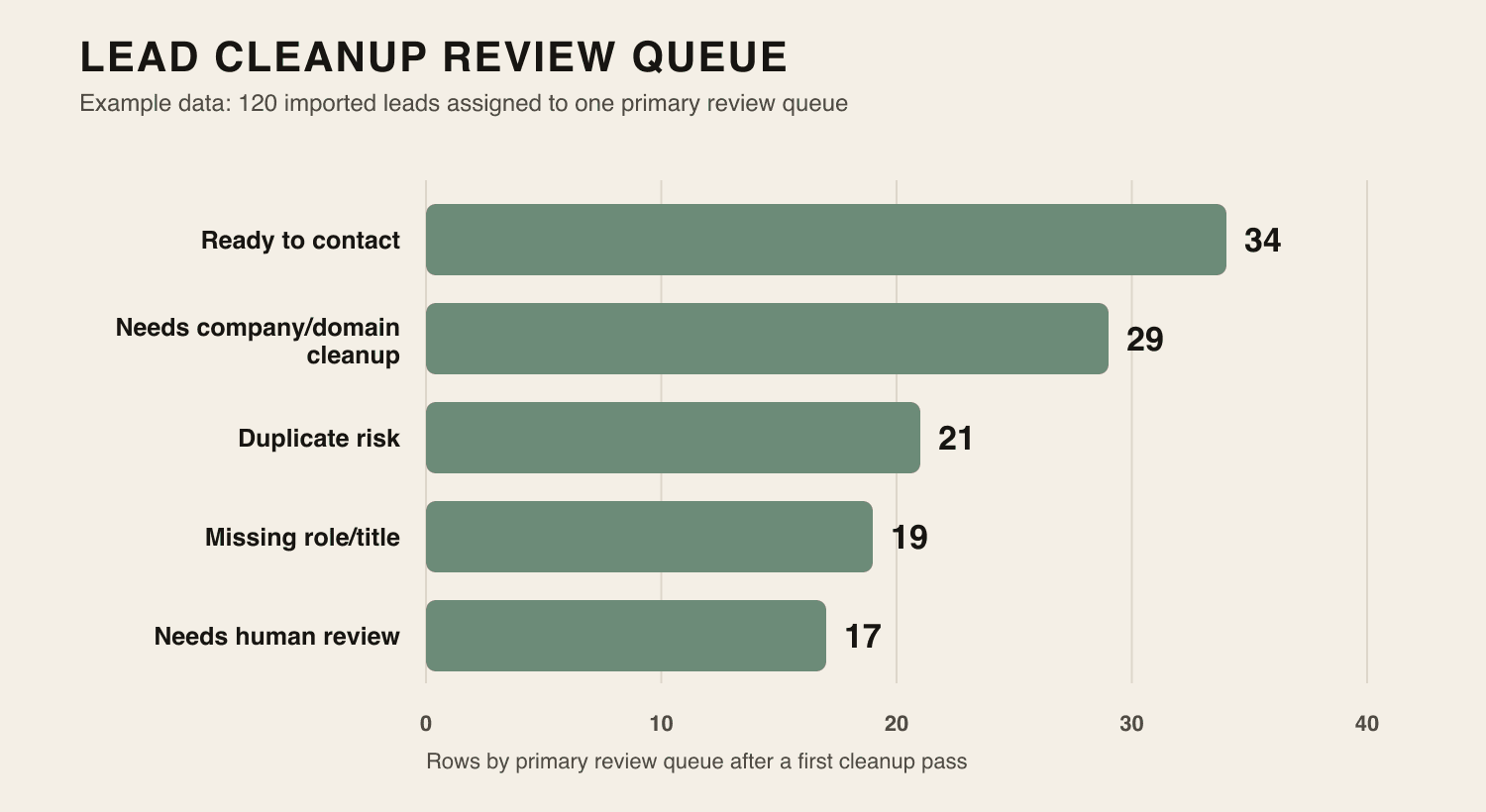
The chart is useful because it tells you where to spend the next hour. If the largest group is ready to contact, outreach can start. If company/domain cleanup or duplicate risk dominates the queue, the list should not move into a CRM yet.
What to automate and what to review
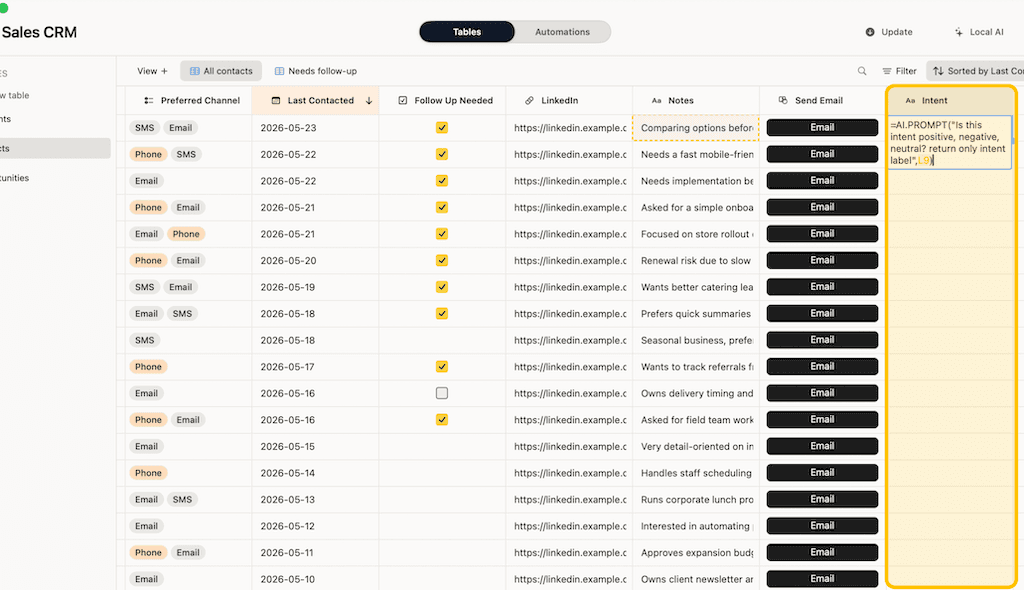
Automation should remove repeated cleanup steps, not hide judgment. Use it for bounded row jobs where the source is visible and the output is easy to inspect.
Good automation candidates:
- Extract role group from title and notes.
- Normalize obvious company-name casing.
- Summarize a long source note into one buying signal.
- Classify rows into fit buckets.
- Draft a follow-up from the row's context.
Keep these jobs human-reviewed:
- Email validity, when deliverability matters.
- External company facts that need fresh web data.
- Legal basis for outreach.
- Final fit decisions for high-value accounts.
- Any row where the model gives low confidence.
Airtable AI fields can retrieve, analyze, or generate cell-level data and can use internet search when configured: Airtable AI fields. That can be useful in a shared cloud base. In a private Mac workflow, keep AI output in reviewable fields before it drives outreach.
How Macrows fits
Macrows fits when lead enrichment should start as a private table on your Mac instead of another shared cloud workflow. It is a private spreadsheet database for Mac, so a lead list can begin as a grid and then grow into fields, saved views, linked records, row buttons, and local AI cleanup.
The Macrows privacy policy says local projects are stored on your Mac and are not uploaded to Macrows Cloud by default. The roadmap lists local AI setup for table cleanup, extraction, and summaries as available now, while the pricing page lists CSV, Excel, and Google Sheets import, linked records, row buttons, basic automations, and local AI setup for cleanup, extraction, and summaries.
Use Macrows for this workflow when you want to:
- Import or paste a lead list into a familiar grid.
- Add real fields for review status, follow-up date, fit, and next action.
- Use local AI for cleanup, classification, extraction, and summaries.
- Keep review views such as duplicate risk and ready to contact.
- Link approved leads into a personal CRM for Mac or a broader spreadsheet database for Mac.
For the privacy tradeoff behind this workflow, read Private Airtable Alternative. For the local AI pattern, read Local AI Spreadsheet Workflows.
When Macrows is not the right fit
Use a dedicated enrichment service when the job is to append fresh company data, verify email deliverability, find new contacts, or run large-scale prospecting from third-party datasets. A private spreadsheet database should not pretend to be a data vendor.
Use a dedicated CRM when the enriched leads need team assignment, sales reporting, sequences, call logging, attribution, permissions, and shared pipeline management.
Use Airtable when the lead workflow belongs in a browser-first team base with shared forms, interfaces, and collaboration from the start. Airtable's sales and CRM template gallery is built around that cloud workspace model: Airtable sales and CRM templates.
Use Google Sheets or Excel when the list is short, temporary, and does not need linked records, saved review views, row actions, or local AI cleanup.
Common mistakes to avoid
The first mistake is overwriting raw columns. Keep the source so every enriched field can be checked.
The second mistake is enriching fields nobody uses. If the field does not change a view, next action, or import decision, skip it.
The third mistake is treating confidence as truth. A confidence value is a review signal, not permission to contact someone.
The fourth mistake is moving leads into a CRM too early. A CRM should receive clean records, not become the place where duplicates and missing domains are discovered.
FAQ
What is a lead enrichment spreadsheet?
A lead enrichment spreadsheet is a table for cleaning raw leads, adding useful fields, and reviewing the result before outreach or CRM import. It should keep raw source fields separate from enriched fields.
What fields should a lead enrichment spreadsheet include?
Start with lead name, email, source company, source note, company domain, role group, lead type, fit, confidence, review status, next action, and follow-up date. Add more fields only when they change a review decision.
Can AI enrich leads in a spreadsheet?
Yes, AI can help normalize names, classify roles, extract signals from notes, summarize context, and suggest next actions. Keep the original row visible and review AI output before using it for outreach or CRM updates.
Should I use a CRM instead of a lead enrichment spreadsheet?
Use a CRM once the lead records are clean enough for sales work, reporting, assignment, and follow-up. Use a lead enrichment spreadsheet first when the list still needs cleanup, dedupe, review, and field design.
Is Macrows good for lead enrichment on Mac?
Yes, Macrows is a good fit when lead enrichment is a private Mac workflow with imported rows, cleanup fields, saved review views, local AI, and row actions. Use a data enrichment service when you need fresh external contact or company data.
How do I avoid bad lead enrichment data?
Keep raw columns, add review status, use confidence only as a review cue, and check low-confidence rows before outreach. Treat enrichment as a cleanup queue, not an automatic truth layer.